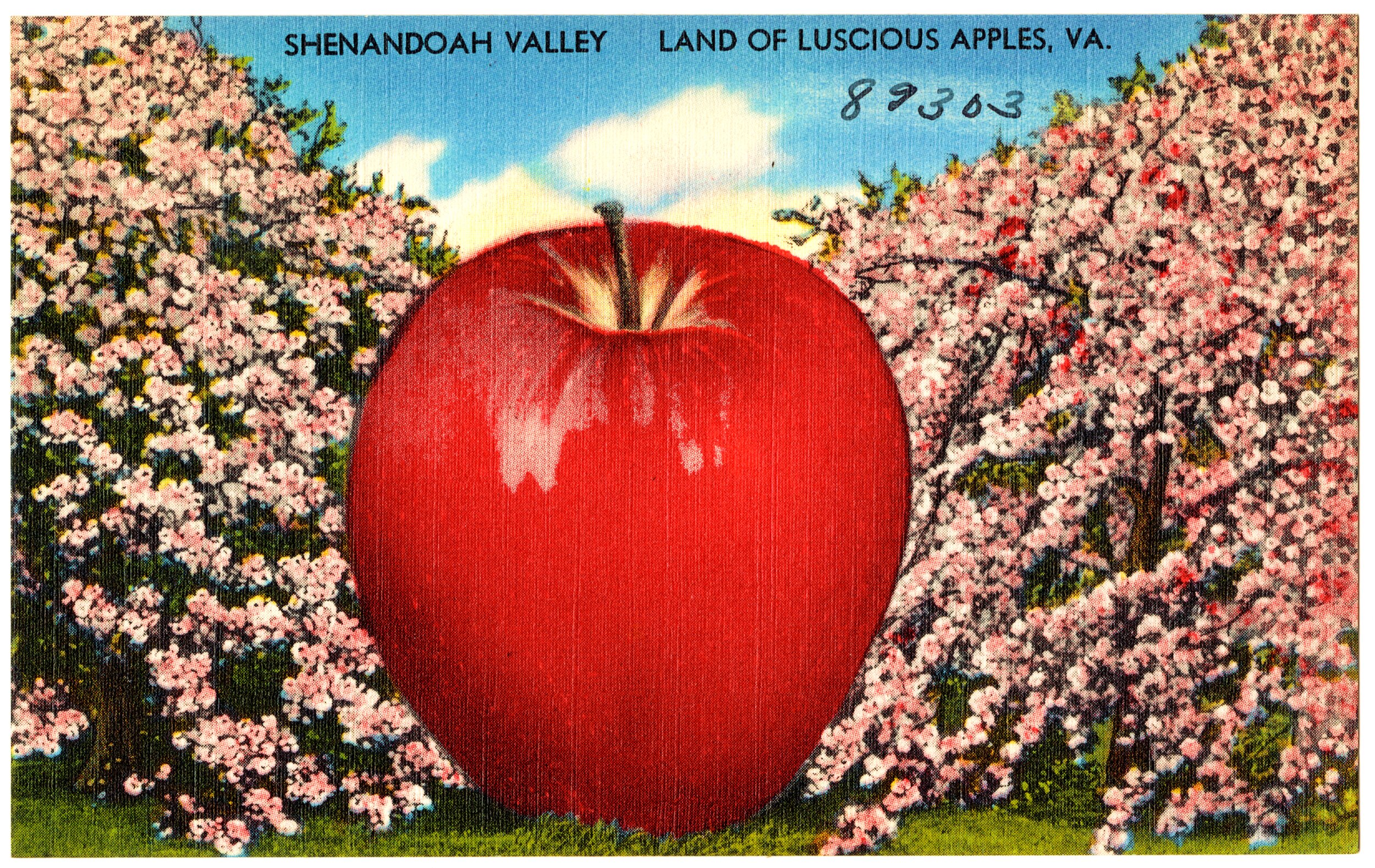
Shenandoah Valley, land of luscious apples, VA. [ca. 1930–1945] The Tichnor Brothers Collection | Source (edited by the Author)
Downgrading to macOS Catalina: A Sermon on Obsolescence

There's a MacBook Pro sitting on my desk that is, by any reasonable measure, a good computer. It runs code. Browses the web. Opens documents, plays music, handles a terminal. The CPU still computes. Keyboard works. "Retina" screen has no dead pixels. ...Okay, it does always need to be plugged in because the third-party battery mysteriously died after only a couple hundred cycles.
But by the standards of most of human history, this object is a miracle! A slab of aluminum and glass containing more computational power than the entire Apollo program, purchased used on Kijiji for a few hundred dollars, doing what I need it to do.
Apple disagrees.
This is going to be a technical tutorial, but it is also a look into how companies stop updating your machine, stop optimizing their software for it, and then keep shipping new releases designed for hardware you don't own. The machine becomes less capable than it was. Gradually, imperceptibly, deliberately slower. Hotter. More stubborn. It's been decided your computer's useful life is over because it hinders generating revenue.
Planned obsolescence is so commonplace in the technology industry we've stopped noticing. We treat it as a natural law. Of course software gets heavier over time. Of course old machines slow down. Of course you'll need to replace your device in a few years. What did you expect?
What I expected, and what I think people should expect, is that a computer that works should continue to work.
The Apple model is at least honest in its dishonesty. macOS Monterey was the last officially supported release for the Early 2015 MacBook Pro. After, the machine was off the list. Done.
Microsoft is So Much Worse
When Windows 11 launched in 2021, it introduced a hard requirement for TPM 2.0, a security chip that many older (but perfectly functional) machines either don't have or can't enable. The result is millions of computers capable of running Windows 11 were arbitrarily excluded from official support because of hardware specifications Microsoft decided to make mandatory.
For a while, Microsoft published its own registry workaround for users on machines with older TPM chips. Then, between December 12 and 14 of 2024, The Register caught via the Wayback Machine that Microsoft quietly removed that workaround from their help documentation.
And Windows 10 reached end-of-life on October 14, 2025. Windows 10 is now unsupported, and Windows 11 is officially unavailable on your machine.
The message delivered in the corporate neutrality of a product lifecycle document is buy a new fucking computer.
The Wastelands
The UN's Global E-waste Monitor 2024 reports that the world generated 62 million tonnes of e-waste in 2022, an 82% increase since 2010. It's on track to increase to 82 million tonnes by 2030. Less than a quarter of it is formally recycled. The rest ends up in landfills, in unregulated dumpsites, or exported to lower-income countries where informal recycling exposes workers, including children, to lead, mercury, and hundreds of other hazardous chemicals. The raw materials sitting unrecovered in that e-waste were valued at USD $91 billion. We're burning the library to avoid paying late fees.
And the corporate software support cycle is a significant driver of this. When your operating system stops receiving security updates, the machine becomes a liability. Browsers stop supporting it. Certificates expire. The internet moves forward. You are told the responsible thing to do is upgrade. The more people attempt to hold onto and maintain their devices, the fewer new devices get sold, and the less profit accrues to the companies that made them.
The Year of the Resurrection
Thankfully, there is an answer and it's been there the whole time. Linux.
A lightweight distribution like Lubuntu, Alpine Linux, or Debian can breathe years (sometimes decades!) of useful life back into hardware declared end-of-life. These distributions receive active security updates, run on modest hardware without complaint, support modern browsers and TLS and certificate bundles, and cost nothing.
These efforts are maintained by communities of people who believe that software should serve its users rather than its manufacturers. And the result is that Linux runs better than they ever ran the corporate OS they shipped with.
This guide is about getting the most out of a MacBook Pro before that moment arrives. Finding the last macOS version that respects the hardware, and installing it cleanly. But it's always good to keep Linux in the back of your mind. It's not a consolation prize.
The Problem
My MacBook Pro (Early 2015, 13" Retina, 8GB RAM, Intel Core i5 2.7GHz) was running macOS Monterey, the last officially supported version, and it was a miserable experience. Temperatures regularly hit 100°C, CPU and RAM pegged at near-maximum with modest workloads like browsing and writing. The hardware was being asked to run software designed for a different class of machine.
My goal was this: Find the most capable, modern-enough macOS version that this machine can run comfortably, without bloat, and install it cleanly from a USB drive made on a newer Mac.
El Capitan?
I began this by using the Internet Recovery (Option + Command + Shift + R at boot), which restores the factory OS. For this machine, OS X El Capitan (10.11). It's blazingly fast on the hardware.
However, El Capitan in 2026 is essentially an internet-disabled machine, rendering it useless for much other than writing (in TextEdit only).
And I wanted to know why exactly this is. Sure, I could assume the version of Safari shipping with El Capitan would be unable to properly render sites of today. It sure couldn't pass the acid test. But what else is going on? A lot, actually.
1. Expired Root Certificates
The most dramatic cause is that the IdenTrust DST Root CA X3 certificate expired on September 30, 2021. This was the root certificate that Let's Encrypt, which now powers SSL for an enormous fraction of the web, had cross-signed through in order to establish trust on older systems when it first launched. When DST Root CA X3 expired, El Capitan and earlier lost the ability to validate HTTPS connections across wide swaths of the internet. Of course, Apple never backported a fix. The trust store froze and everyone moved on.
2. TLS Protocol Obsolescence
El Capitan's networking stack has limited support for modern TLS versions. TLS 1.0 and 1.1 were deprecated by the IETF in March 2021, and all major browsers, from Chrome, Firefox, Safari to Edge, began disabling them as early as 2020. El Capitan struggles to negotiate TLS 1.2 properly in many contexts, let alone TLS 1.3. Servers hardened their configurations. Backward compatibility got dropped.
3. No Security Updates Since 2018
Apple stopped issuing security patches for El Capitan in 2018. That means no updated certificate bundles, no updated cipher suites, no patches for the vulnerabilities that drove browsers and servers to drop older protocol support in the first place. A handshake with a web that no longer exists.
4. Browser Abandonment
Chrome dropped El Capitan support entirely with Chrome 104 in 2022. Firefox followed with its own end-of-life for the platform. Safari on El Capitan is capped at version 11 (2017). Even when a connection technically succeeds, the JavaScript engine is too old to render nearly anything because nearly every website (unnecessarily) uses JavaScript.
5. OCSP and Certificate Transparency
Modern certificate validation involves OCSP checks and Certificate Transparency logs. El Capitan's implementation is outdated. Apple's own OCSP servers caused a famous outage and privacy controversy in 2020. Older systems got hit harder, as they had less graceful fallback behaviour.
6. Cumulative and Compounding
None of these alone kills internet access. Together, they create a situation where the system can't trust certificates, can't negotiate modern TLS, runs only abandoned browsers, and gets actively rejected by web servers.
The best workaround I found was Firefox ESR v78.15.0, the last Firefox version supporting macOS 10.11. It gave limited browsing capability, but it'd be a security risk to try to sign into anything.
In addition to that, Sublime Text's Package Control was broken, brew was unusable, and most developer tooling was non-functional. For anything beyond light reading, El Capitan is a dead end.
Finding the Sweet Spot
After doing research, I found that macOS Catalina 10.15.7 hits the intersection of properties that make it the right answer for my machine:
- Last of the 10.x era. It's the final version under the traditional
10.xnaming scheme, the last Intel-only release, and the last to carry the flat iOS 7-era design language that originated with Yosemite. Mature and stable. - Security for the Internet. Catalina received security updates through July 2022, meaning its certificate trust store, TLS handling, and cipher suite support stayed contemporary for several years after release. It can negotiate HTTPS with the modern web.
- Homebrew support. Catalina is still supported with minor caveats for newer formulae and receives bottles for most packages. The package manager works.
- Modern app support. Most developer tools, editors, and utilities still have builds targeting 10.15 (though you'll probably have to do some digging)
- Pre-Apple Silicon. No Rosetta, no ARM transition. Just Intel macOS.
The Problem With Normal Downgrade Methods
Finally, this is the actual why I'm writing this article. I apologize for writing the tech equivalent of a recipe where you have to scroll down halfway until you get to the actual measurements and directions. I can't help myself but get into a contemplative mode!
There is a standard Apple approach to downgrading. In the past, you could download the installer from the App Store and run it, or use the createinstallmedia command. Now, none of this works with a newer macOS:
- The macOS App Store on Ventura/Sequoia won't let you download Catalina's
Install macOS Catalina.appnormally - Even if you obtain the installer,
/usr/sbin/installerandcreateinstallmediaperform OS compatibility checks that reject older installers on newer host systems - SIP and system integrity policies interfere with running old installer binaries
There is a solution, thankfully. Download the raw installer components directly from Apple's CDN using mist-cli, then manually assemble the bootable USB.
What You'll Need
- A modern Mac (I used a MacBook Air M4 running macOS Sequoia)
- A USB drive ≥ 8GB, formatted as Mac OS Extended (Journaled), GUID Partition Map, I named mine
MacOS Installerand will be using that name throughout this tutorial. - mist-cli installed (
brew install mist-cli) sudoaccess
Step 1: Download the Catalina Components via mist-cli
mist-cli downloads macOS installer components directly from Apple's software update CDN, bypassing the App Store entirely. It deposits the raw package/DMG files into a staging directory.
mist download installer 10.15.7 --output-type packagemist will download all installer components into a temp directory. In this case, Catalina 10.15.7 corresponds to Apple's internal product ID 001-68446:
/private/tmp/com.ninxsoft.mist/001-68446/
Verify the contents:
ls -la /private/tmp/com.ninxsoft.mist/001-68446/Expected output:
total 39162064
drwxr-xr-x@ 15 root     wheel          480 Mar 20 03:03 .
drwxr-xr-x   4 user     wheel          128 Mar 20 01:46 ..
-rw-r--r--@  1 root     wheel  11274289152 Mar 20 03:05 001-68446.dmg
-rw-------   1 root     wheel         8972 Mar 20 01:46 001-68446.English.dist
-rw-------   1 root     wheel          328 Mar 20 01:46 AppleDiagnostics.chunklist
-rw-------   1 root     wheel      3147529 Mar 20 01:46 AppleDiagnostics.dmg
-rw-------   1 root     wheel         2020 Mar 20 01:46 BaseSystem.chunklist
-rw-------   1 root     wheel    498625205 Mar 20 01:50 BaseSystem.dmg
-rw-------   1 root     wheel     10752325 Mar 20 01:50 InstallAssistantAuto.pkg
-rw-------   1 root     wheel        26896 Mar 20 01:50 InstallESDDmg.chunklist
-rw-------   1 root     wheel   7737578258 Mar 20 02:53 InstallESDDmg.pkg
-rw-------   1 root     wheel         1584 Mar 20 02:53 InstallInfo.plist
-rw-------   1 root     wheel      1904883 Mar 20 02:53 MajorOSInfo.pkg
-rw-------   1 root     wheel       799432 Mar 20 02:53 OSInstall.mpkg
-rw-------   1 root     wheel    500655390 Mar 20 02:57 RecoveryHDMetaDmg.pkg
The key files are:
| File | Purpose |
|---|---|
BaseSystem.dmg |
The macOS Recovery / Base System disk image — this becomes the bootable core of the USB |
BaseSystem.chunklist |
Cryptographic chunklist for verifying BaseSystem integrity |
InstallESDDmg.pkg |
A package wrapping InstallESD.dmg — the main macOS installer disk image (~7.7GB) |
InstallAssistantAuto.pkg |
The install assistant automation package |
MajorOSInfo.pkg |
OS metadata package |
Step 2: Confirm Your USB Drive Is Mounted
ls -la /Volumes/drwxr-xr-x 6 root wheel 192 Mar 20 03:16 .
drwxrwxr-x 7 user staff 306 Mar 20 01:08 MacOS Installer
The drive MacOS Installer is present and (at this point) empty.
Step 3: Mount BaseSystem.dmg
BaseSystem.dmg is a compressed Apple Disk Image containing the macOS Recovery environment. We mount it so we can restore it to the USB.
sudo hdiutil attach /private/tmp/com.ninxsoft.mist/001-68446/BaseSystem.dmghdiutil will checksum and verify the image before mounting:
Checksumming Protective Master Boot Record (MBR : 0)…
Protective Master Boot Record (MBR :: verified   CRC32 $343A54DE
...
          disk image (Apple_HFS : 4): verified   CRC32 $9A65847F
...
/dev/disk9              GUID_partition_scheme
/dev/disk9s1            Apple_HFS                       /Volumes/macOS Base System
The image mounts as /Volumes/macOS Base System on /dev/disk9.
Step 4: Restore BaseSystem to the USB with asr
Apple Software Restore (asr) is a low-level block-copy tool that can restore a disk image directly to a volume, byte-for-byte. We use it to clone the Base System onto the USB, which formats the USB correctly and makes it bootable.
--erase flag will wipe your USB drive. Make sure /Volumes/MacOS Installer is your USB and not something important.
sudo asr restore \
  --source /Volumes/macOS\ Base\ System \
  --target "/Volumes/MacOS Installer" \
  --erase \
  --noprompt
Validating target...done
Validating source...done
Validating sizes...done
Restoring ....10....20....30....40....50....60....70....80....90....100
Verifying ....10....20....30....40....50....60....70....80....90....100
Restored target device is /dev/disk4s2.
Remounting target volume...done
Restore completed successfully.
The USB is now a bootable macOS Base System. But it's only the recovery environment and it doesn't yet have the full installer payload. We need to add that manually.
Step 5: Create the Installer App Bundle Structure
The macOS installer expects a specific directory structure on the USB. We create the Install macOS Catalina.app bundle skeleton manually:
sudo mkdir -p "/Volumes/MacOS Installer/Install macOS Catalina.app/Contents/SharedSupport"Step 6: Copy BaseSystem Files to the USB Root
The bootloader needs BaseSystem.dmg and its chunklist at the root of the volume:
sudo cp /private/tmp/com.ninxsoft.mist/001-68446/BaseSystem.dmg \
    "/Volumes/MacOS Installer/BaseSystem.dmg"

sudo cp /private/tmp/com.ninxsoft.mist/001-68446/BaseSystem.chunklist \
    "/Volumes/MacOS Installer/BaseSystem.chunklist"
Step 7: Extract InstallESD.dmg from Its Package Wrapper
InstallESDDmg.pkg is a flat package containing the actual installer disk image InstallESD.dmg. We use pkgutil to expand it and extract the payload:
sudo pkgutil --expand \
    /private/tmp/com.ninxsoft.mist/001-68446/InstallESDDmg.pkg \
    /tmp/InstallESD
This deposits InstallESD.dmg (and other package metadata) into /tmp/InstallESD/.
Step 8: Copy Installer Payloads into SharedSupport
Now we populate the SharedSupport directory inside the app bundle with the installer disk image and supporting packages:
# The main ~7.7GB installer image
sudo cp /tmp/InstallESD/InstallESD.dmg \
    "/Volumes/MacOS Installer/Install macOS Catalina.app/Contents/SharedSupport/"

# Install assistant automation
sudo cp /private/tmp/com.ninxsoft.mist/001-68446/InstallAssistantAuto.pkg \
    "/Volumes/MacOS Installer/Install macOS Catalina.app/Contents/SharedSupport/"

# OS metadata
sudo cp /private/tmp/com.ninxsoft.mist/001-68446/MajorOSInfo.pkg \
    "/Volumes/MacOS Installer/Install macOS Catalina.app/Contents/SharedSupport/"
Step 9: Detach the BaseSystem Image
sudo hdiutil detach /Volumes/macOS\ Base\ System"disk9" ejected.
Step 10: Verify the Final USB Structure
ls -la "/Volumes/MacOS Installer/"total 973888
drwxr-xr-x@ 5 root wheel 160 Mar 20 03:22 .
drwxr-xr-x 7 root wheel 224 Mar 20 03:23 ..
-rw------- 1 root wheel 2020 Mar 20 03:22 BaseSystem.chunklist
-rw------- 1 root wheel 498625205 Mar 20 03:22 BaseSystem.dmg
drwxr-xr-x@ 3 root wheel 96 Mar 20 03:22 Install macOS Catalina.app
Step 11: Boot the Target Mac from the USB
- Shut down the MacBook Pro
- Insert the USB drive
- Power on while holding Option (⌥)
- Select "MacOS Installer" from the boot picker
- Once in the installer, use Disk Utility to erase your internal drive (APFS or Mac OS Extended, GUID Partition Map)
- Quit Disk Utility and run Install macOS Catalina
Why This Works (When Normal Methods Don't)
This bypasses all the compatibility checks built into the higher-level installer tooling by working directly with the raw disk images.
hdiutil doesn't care what host OS you're running, it just mounts disk images. asr is a block-level copy tool with no OS version gating. pkgutil --expand is a passive extraction tool that doesn't execute installer scripts. And cp is cp.
The assembling of the USB manually from primitives sidesteps each layer of the system that would otherwise reject the older installer running on a modern macOS.
No installer wizard to check compatibility. No notarization gate. No App Store version lock. Just disk images and a file system.
Work close to the metal. High-level tools have opinions. Low-level tools just do what you tell them.
Result
A MacBook Pro Early 2015 running macOS Catalina 10.15.7. Clean install, no internet recovery hacks, no patching tools (I'll be honest, I was surprised this method worked the first time without issue for me). The machine runs well enough and is now capable of real development work. A functioning package manager, a current browser, and a trust store that can actually negotiate with the modern HTTPS web. Ten years old and still useful.
What Comes After Catalina
A few years from now, all of this work will be rendered null and this machine will be running Linux.
I love Linux. I have plenty of different computers running it, but macOS was designed for this hardware. The trackpad gestures, the keyboard shortcuts, the way everything just integrates without fuss. It's years of Apple engineering the software to fit the machine, and you feel the absence when it's gone.
Linux on Apple silicon is improving fast, but Linux on Intel Macs in 2025 still means accepting tradeoffs. Bluetooth is iffy, suspend/resume as well. There's still an uncomfortable disconnect.
Still, though. The alternative, which is either an unusable machine or a machine that costs $3,000 to replace, is obviously much worse.
If you're buying new hardware and have the money, your best bet is something like the Framework Laptop. Framework's whole project is to build modular, repairable, upgradeable hardware—machines designed to last a decade rather than three to five years, with replaceable ports, batteries, screens, and mainboards that can be swapped as technology improves.
Right to repair, built in from the start as a product philosophy rather than an afterthought. The Framework 13 starts at around $1,000 USD, which is reasonable for what you're getting. Obsolescence isn't their business model.
But if you're reading a guide about how to keep a ten-year-old MacBook Pro running, you're probably not in the market for a Framework Laptop.
The Golden Gift
Before I finish this essay pretending to be a technical write-up, I want to finally touch on why you shouldn't buy new Apple products now.
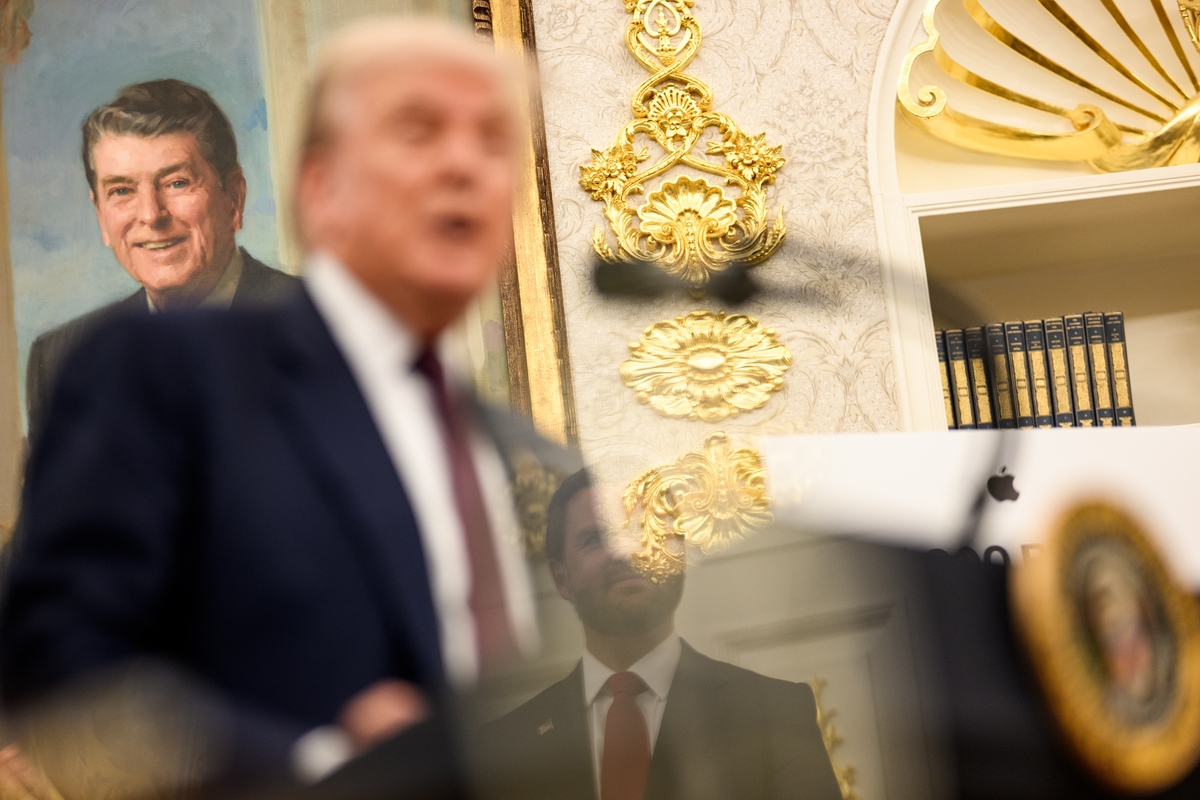
On August 6, 2025, Tim Cook walked into the Oval Office and handed Donald Trump a gift: a custom glass plaque, engraved, mounted on a base of 24-karat gold. Cook pointed out, in the careful tones of a man very conscious (nervous?) of his audience, that the glass was designed by a former Marine Corps corporal now employed at Apple, and that the gold came from Utah.
Trump said, "I'll take the liberty of setting it up," and proceeded to fumble the glass disc into the slot for a moment before it clicked into place. Everyone smiled.
This was not a spontaneous gesture; it was the capstone of a years-long project. Cook personally donated $1 million to Trump's inaugural committee in January 2025 in what Axios was told was "the spirit of unity."
Cook attended the inauguration, a Mar-a-Lago dinner, and a White House screening of a documentary about Melania Trump. The business press started calling him a "Trump Whisperer" for his facility at maintaining access and rapport with an administration that, in its first term, had already handed Apple significant tariff carve-outs.
The August visit came packaged with a $100 billion pledge toward U.S. manufacturing, bringing Apple's total committed investment to $600 billion over four years. Not coincidentally, Apple secured an exemption from Trump's new semiconductor tariffs hours before they took effect. A Harvard Business Ethics professor, asked to comment, said that "nobody would describe it as ethically noble, but it was just a small gesture underscoring the Apple commitment." That's the bar cleared.
When pressed on all of this in a 2026 Good Morning America interview, Cook said, simply: "I'm not a political person on either side. I'm not political." Cook is an openly gay man, a fact he announced in a 2014 essay in Bloomberg Businessweek, describing it as his greatest source of pride.
The Trump administration has, in its second term, targeted transgender Americans, LGBTQ+ rights, and reproductive freedom with legislative aggression that is not subtle and does not require interpretation. Cook's response to all of this has been a glass plaque on a gold base, delivered with a smile, while some of his own employees shared negative reactions in internal Slack messages and customers called for boycotts that sadly haven't gained traction (just look at all the coverage for the Chromebook-esque MacBook Neo).
The decades of Apple's carefully constructed identity: the 1984 ad, the rainbow Apple logo, the "Think Different" campaign, the public stand against the FBI's demand to break iPhone encryption in 2016. All of it was brand equity. Goodwill earned over years of positioning the company as the one that was different. And Tim Cook has been burning and spending it, deliberately, in exchange for tariff exemptions and regulatory forbearance.
The machine on my desk was made by that company. But there is a difference between using what you already own (a ten-year-old machine, bought secondhand, whose purchase price went to a stranger on Kijiji) and buying new hardware that puts money into a company whose CEO is currently spending $1 million of his personal fortune to ensure his access to an administration that is actively hostile to people like him, and people far more vulnerable than him.
Use what you have. Wring every year out of it. When it finally gives up, consider whether the company you're buying still deserves your money and support. These are small acts, but they are not nothing.

Comments
To comment, please sign in with your website:
How it works: Your website needs to support IndieAuth. GitHub profiles work out of the box. You can also use IndieAuth.com to authenticate via GitLab, Codeberg, email, or PGP. Setup instructions.
Signed in as:
No comments yet. Be the first to share your thoughts!